

How to Charge Laptop in Car: Safe Power Options

A laptop can draw far more power than a phone, so the best in-car setup is not simply the charger with the highest number on its label. You need a compatible power path, a cable that can carry the requested output, and a vehicle outlet that can safely support the load.
Explore KEUTEK car charging options for a compatible, travel-ready setup.
The safest answer to how to charge laptop in car depends on the laptop's input requirements and your situation. A USB-C PD car charger is usually the simplest direct option when the laptop supports USB-C charging. An inverter or portable power station may fit laptops with proprietary chargers or longer parked work sessions. USB Power Delivery allows compatible devices to negotiate an available voltage, but the system still operates within the limits of the charger, cable, laptop, and vehicle.
Before plugging in, identify which of those limits controls your setup. That makes it easier to compare direct USB-C charging with AC conversion and stored power. Then choose a method that works without overloading an accessory outlet or leaving equipment running carelessly while parked.
How to Charge a Laptop in a Car Safely
The safest answer to how to charge laptop in car is to choose the simplest power path that matches the laptop, charger, cable, and vehicle limits. For a USB-C charging laptop, start with a compatible USB-C Power Delivery car charger connected directly to the laptop. This avoids adding an inverter between the vehicle and the computer. If the laptop does not accept USB-C charging, an inverter may be practical. A portable power station is usually the most flexible choice when you are parked and need several outlets. It can also help you avoid drawing from the vehicle during a long stop.
Before connecting anything, check the laptop maker's label or manual for its input requirements. Then compare those requirements with the car charger's output, the cable's rating, and the vehicle outlet's stated limit. An unsupported cable or adapter may cause very slow charging or no charging at all. Testing a different compatible cable or power adapter can help isolate the problem. Google's charging guidance recommends trying another cable or adapter when wired charging fails.
| Which power method fits? | When is it a good fit? | What should you verify first? |
|---|---|---|
| Direct USB-C PD car charger. | This is the most direct option when the laptop accepts USB-C charging and the car-side charger matches the required input. | Verify the laptop input, charger output, cable capability, and vehicle outlet limit as one complete system. |
| Vehicle-powered inverter | This is useful when the laptop uses a conventional AC adapter or does not support charging through USB-C. | Verify that the inverter and vehicle outlet can support the laptop adapter, and follow the vehicle maker's instructions for accessory use. |
| Portable power station | This is a practical option for parked work, longer stops, or charging a laptop alongside other devices without relying on the car outlet. | Verify that the station has a compatible output, sufficient capacity for your intended session, and safe placement while in use. |
Keep every connection firm from the laptop cable to the adapter and power source. Apple gives this as a basic charging check in its support guidance, and the same principle applies when the power source is inside a vehicle: check for firm connections. If the laptop does not begin charging, disconnect it, inspect the cable and adapter for damage, and test with a known-compatible alternative rather than forcing the connection.
For most USB-C laptops, direct USB-C PD is the cleanest starting point. An inverter fills the compatibility gap for AC adapters, while a portable power station provides the most independence when the car is parked. In every case, use the option whose documented limits match the laptop and vehicle, not simply the option with the highest advertised output.
How Do You Check Whether Your Laptop Can Charge Through USB-C?
Before using a car charger for how to charge laptop in car, confirm that the laptop is designed to accept power through USB-C. Start with the label beside each USB-C port, the laptop maker's manual, or the official specifications. A USB-C-shaped port may support charging, data, display output, or several functions without accepting power input. Look specifically for wording such as USB-C charging input, power input, or USB Power Delivery support.
Next, compare the laptop's stated input requirement with the output profile of the car charger. The charger must be able to provide a compatible USB-C Power Delivery profile, while the laptop remains responsible for requesting the power it can use. USB Power Delivery is a negotiated system, not a promise that every connected device receives the charger's maximum output. The USB-IF overview of USB Charger Power Delivery explains the standard's role in negotiating power between compatible equipment.
Check the cable separately. A cable rating describes what the cable is designed to carry under supported conditions. It does not create charger output, increase the vehicle outlet's limit, or make a non-charging laptop port accept power. Use a cable that is supported by the laptop and charger combination. An unsupported or damaged cable or adapter can result in very slow charging or no charging at all, as Google notes in its wired-charging troubleshooting guidance. Apple likewise recommends checking for firm connections between the cable, adapter, and power source.
Then test the complete chain: laptop input, charger output, cable, and vehicle outlet. If charging fails, reseat each connection and try another supported cable or adapter rather than assuming the laptop is defective. For a practical explanation of the compatibility checks, review this USB-C PD charger compatibility guide.
Finally, check whether the laptop uses a proprietary barrel connector instead of USB-C charging. In that case, a USB-C car charger is not automatically a substitute. Follow the laptop maker's instructions and use a compatible power solution. Do not force an adapter or rely on a cable rating to overcome a connector or charging-standard mismatch.
Related products

Adaptive technology throttles 1-5 amp charging output based on your device.
View product
In today's interconnected world, reliable and efficient power is not just a convenience—it is a necessity.
View product
What Should You Know About a USB-C PD Car Charger and Cable?
A USB-C PD car charger is often a direct way to charge a compatible laptop in a car because the vehicle supplies DC power. The adapter manages that DC input for the laptop instead of first creating household AC. USB Power Delivery then negotiates an output that the connected equipment can use. That negotiation is not a promise that every car adapter or laptop supports every PD level. USB-IF describes USB PD as a power-delivery system whose capabilities depend on compatible equipment. So check the laptop maker's label or manual and the charger's live specifications before relying on this setup: USB-IF USB Charger and Power Delivery guidance.
The charger output and cable capability are separate parts of the chain. A charger may advertise a particular USB-C PD profile, while the cable must also be supported for the intended connection. A high-capability cable does not increase the output of the car adapter, and a capable adapter cannot make an unsupported laptop accept power. Google notes that an unsupported or damaged cable or adapter can lead to very slow charging or no charging at all. As one current cable option, review the current high-power USB-C cable and confirm its live specifications against your laptop and charger. It is an option, not a promise of universal laptop compatibility.
The vehicle is another limit. The accessory socket, built-in port, and vehicle wiring determine how much power the car can provide. The USB-IF ceiling for a compatible PD system does not mean a car adapter or laptop supports that ceiling. Treat the vehicle outlet rating and the charger's stated input requirements as practical boundaries, and do not assume that a cable rating sets the vehicle's output.
How Can You Check the Setup Before Driving?
- Confirm that the laptop accepts charging through USB-C and note the input guidance in its manual.
- Check the charger's USB-C PD output and the vehicle accessory outlet limits.
- Use a cable intended for the connection, then inspect both the cable and adapter for breakage or other damage.
- Make firm connections at the laptop, cable, and car adapter. Do not use a damaged charging cable or adapter.
- Test the setup while parked. If charging is absent, restart the device and recheck the connections before troubleshooting further.
This direct DC-to-DC approach can be efficient and convenient, but the complete chain must agree: laptop input, negotiated charger output, cable capability, and vehicle supply. Verify each link instead of choosing by a single wattage label.
When Does an Inverter Make Sense for Laptop Charging in a Car?
An inverter can make sense when your laptop charger requires household-style AC power and the vehicle provides a suitable inverter or accessory outlet. The tradeoff is an extra conversion step: the vehicle supplies DC power, the inverter converts it to AC, and the laptop charger converts that AC back to the DC power the laptop uses. That path can be useful for compatibility, but it adds another device and another limit to check.
Do not assume that every inverter supports every laptop charger. Built-in vehicle inverters are designed around the vehicle maker's stated operating conditions and output limits. Aftermarket inverters vary by model and may shut down when the connected load exceeds their rated limit. The inverter label, the vehicle manual, and the laptop charger's input requirements should agree before you connect the setup.
A vehicle manual hosted by the National Highway Traffic Safety Administration illustrates why this check must be vehicle-specific. In that manual, the vehicle describes its accessory outlets as 12 V and 13 A, and its 150 W inverter can shut down when the connected demand exceeds its limit. That example is not a universal rule for every car. Your vehicle may specify different outlet ratings, inverter behavior, or operating conditions, so use your own manual as the controlling source.
Built-in and aftermarket options also differ in how their limits are communicated. A factory system may include vehicle-specific warnings or shutdown behavior. An aftermarket inverter may protect itself by switching off, but that does not make an overloaded connection appropriate. Check the inverter's continuous-use guidance, not just a maximum number printed on the case, and account for the laptop charger and any other connected equipment.
If you need AC because your laptop cannot use a compatible direct USB-C car charger, an inverter may be practical. If direct charging is available, it may avoid the DC-to-AC-to-DC conversion chain. For a deeper safety review before choosing an inverter, read KEUTEK's portable power inverter safety guide. The right answer to how to charge laptop in car depends on the laptop, charger, inverter, and vehicle limits together.
When Is a Portable Power Station the Better Option?
A portable power station can be the better choice when how to charge laptop in car means setting up a temporary workspace, not simply topping up a laptop during a short drive. It is useful when you are parked for a longer stop, working away from a wall outlet, or powering several compatible devices from one organized source. That flexibility can reduce the need to run multiple adapters from the vehicle at once. It also keeps your charging plan portable when you move between a parking area, campsite, field site, or passenger seat. For scheduled work, set up the station before opening the laptop so every connection is visible and easy to disconnect.
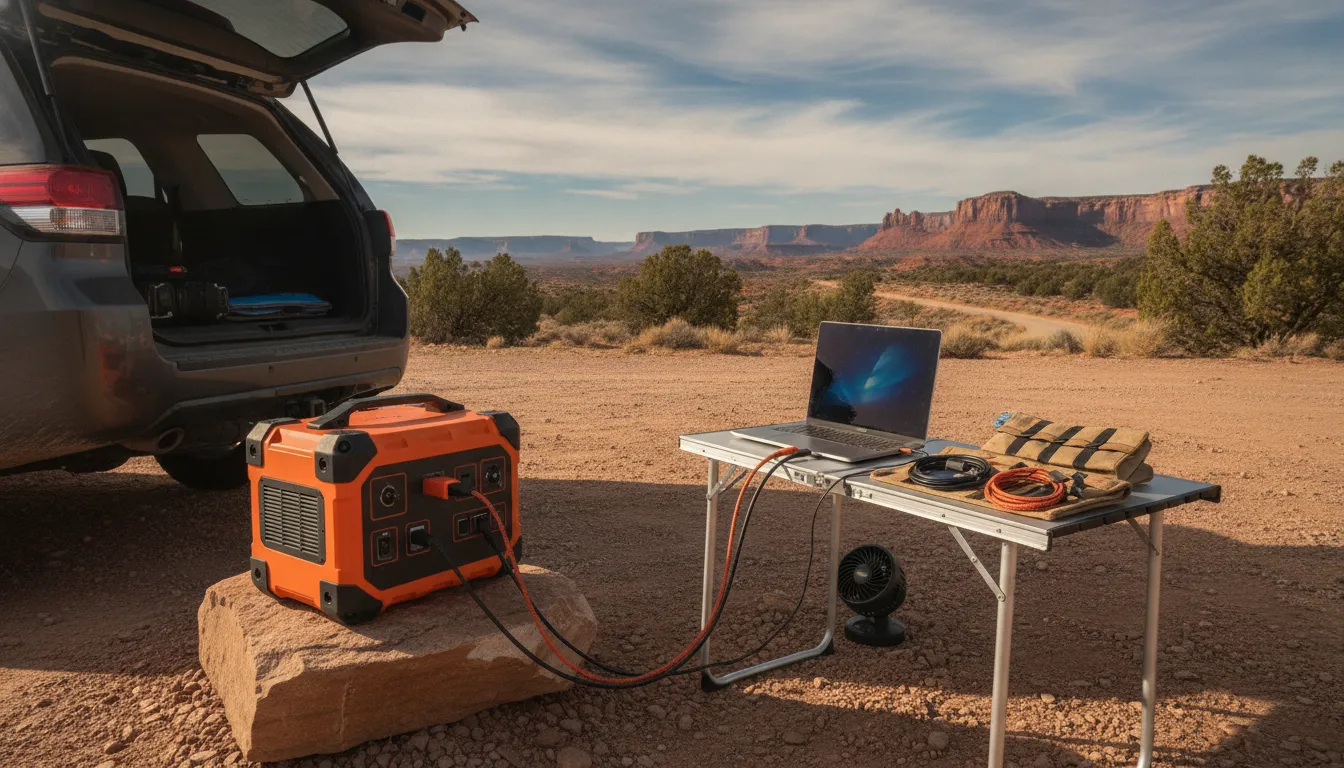
Start by checking the laptop's charging method and the station's available outputs. Confirm that the station has the connection your laptop accepts, whether that is USB-C Power Delivery or an AC outlet for the laptop's standard adapter. Then compare the laptop's input requirements with the station's documented output. For several devices, check whether the station can support their combined demand at the same time. Do not assume that a larger-looking unit, a particular port, or a cable rating guarantees compatibility.
Capacity is a planning specification, not a promise of runtime. The actual time available depends on the devices connected, their activity, conversion losses, and the station's operating conditions. Use the maker's published specifications and your own device labels or manuals rather than relying on a universal runtime estimate. For a practical overview of the selection process, review KEUTEK's portable power station sizing guide.
Safety matters more during parked work. Keep the station and its cables away from excessive heat, moisture, and physical damage. Inspect accessories before use, follow the station and battery-maker instructions, and stop using the setup if it becomes unusually hot, swollen, damaged, or otherwise abnormal. OSHA's lithium-battery guidance and New York's Charge Safe guidance both reinforce careful handling, charging, and storage practices. Do not leave a questionable battery or damaged charging setup operating unattended.
Choose a portable power station when its documented outputs match your laptop and the capacity suits your planned stop. If you only need a brief charge while driving, a properly matched in-car option may be simpler.
OSHA lithium-battery safety guidance provides additional handling context for rechargeable battery systems.
How Can You Charge a Laptop Safely While Parked?
When you are deciding how to charge laptop in car while parked, treat the vehicle, charger, cable, and laptop as one system. The vehicle manual controls the permitted accessory-outlet conditions. A cited vehicle manual hosted by the NHTSA is an example, not a universal rule. Read your own vehicle manual before connecting an inverter or other higher-draw accessory.
- Park safely before connecting power. Stop in a legal, secure location with the vehicle in Park and the parking brake set. Keep the laptop, cable, and charger away from pedals, the steering wheel, and moving mechanisms. Follow the vehicle maker's instructions for accessory power and ignition conditions. The example manual describes ignition-dependent use and warns about battery drain and intermittent accessory operation; your vehicle's manual takes priority.
- Keep the setup ventilated. Place the laptop and charger on a firm, open surface rather than under clothing, bedding, or a seat cushion. Do not block vents. Heat can affect charging behavior. Apple notes that a device may limit charging when its battery gets too warm and resume after the temperature drops. So a charging pause is a reason to check conditions, not a reason to cover the device.
- Inspect for heat or damage. Before use, check the laptop, cable, adapter, and plugs for unusual heat, swelling, fraying, bent contacts, odor, discoloration, or looseness. Secure connections at both ends. Google recommends checking that the cable is secure at the adapter and device, and its charging guidance supports stopping when temperature conditions become unsafe. General lithium-ion handling guidance from OSHA and NYS DHSES also reinforces using sound equipment and following maker guidance.
- Follow the laptop and battery manufacturer's instructions. Check the laptop label or manual for its input requirements, approved charging method, and temperature guidance. Do not assume a USB-C connector guarantees compatibility. Apple documents that charging behavior can vary with charger type, cable, device settings, and temperature. Device-specific instructions control when they differ from general advice.
- Do not leave charging unattended. Stay with the setup while the vehicle is parked. Avoid charging if you cannot monitor the equipment, especially in hot or cold conditions. Keep the vehicle's accessory limits and any inverter instructions visible when planning the setup.
- Unplug when the vehicle is off. If the manual does not explicitly support charging in that condition, disconnect the charger before switching off or leaving the vehicle. This reduces the chance of draining the vehicle battery and avoids relying on an outlet state you have not verified.
- Stop at the first warning sign. Disconnect power if the laptop or charger becomes unusually hot, smells burnt, shows damage, produces smoke, sparks, or repeatedly pauses or reports an incompatible charger. Let equipment cool in a safe place, do not use damaged accessories, and contact the manufacturer or a qualified technician when the cause is unclear.
A careful parked setup is simple: verify the vehicle instructions, keep air moving, use intact equipment, monitor the charge, and disconnect when conditions are not normal.
Review KEUTEK's current high-power USB-C cable as part of a compatible in-car laptop charging setup.
Frequently Asked Questions
Can we charge a laptop in a car?
Yes, if the charging setup matches the laptop and the vehicle. The main options are a USB-C Power Delivery car charger, a vehicle power inverter, or a portable power station. Check the laptop's charging requirements, the charger's output, the cable capability, and the vehicle outlet limits before connecting. Keep the laptop ventilated, use an undamaged cable and adapter, and do not leave the setup running unattended.
Is there a laptop charger for a car?
There are car chargers designed to power compatible laptops directly through USB-C Power Delivery. This direct path can be a practical choice when the laptop accepts USB-C charging and the car charger provides suitable output. A laptop with a proprietary charging connector may need its original charger and a compatible inverter instead. Always confirm the laptop maker's requirements rather than assuming one car charger fits every model.
How do you keep a laptop charged in a car?
Start with the most direct compatible option: connect the laptop to a suitable USB-C PD car charger while the vehicle is operating under the conditions specified in its manual. For longer parked sessions or multiple devices, a portable power station may be more suitable. An inverter can work when the laptop needs AC power, but it must stay within the vehicle outlet and inverter limits. Check connections regularly and disconnect damaged accessories.
Can I charge my laptop through USB-C?
You can charge it through USB-C only if the laptop supports charging through that port and the complete setup meets its requirements. Check the laptop label, manual, or manufacturer specifications. The cable and charger both matter, and a USB-C-shaped connector alone does not guarantee laptop charging. If the laptop uses a barrel connector or another proprietary input, USB-C may not be a direct charging solution.
Should I use a USB-C PD car charger or an inverter for a laptop?
Choose a USB-C PD car charger when the laptop supports USB-C input and the charger, cable, and vehicle outlet are compatible. It is the simpler direct option. Choose an inverter when the laptop requires its AC adapter or when you need conventional AC outlets, while staying within the vehicle's stated limits. For extended parked work or several devices, compare a portable power station as another option. Stop using any setup that becomes unusually hot or shows damage.
Ready to Build a Safer In-Car Charging Setup?
Contact KEUTEK to review your current in-car charging setup after confirming your laptop, charger, cable, and vehicle limits match.


Leave a comment