

iPad Pro Not Charging USB C: Safe Fixes

When the problem is iPad Pro not charging USB C, replacing the cable first can hide the real cause. Power has to travel through several separate points: the wall outlet, adapter, cable, USB-C port, and iPad. A safe diagnosis changes one variable at a time.
Quick answer: test a known-working outlet, compatible power adapter, and USB-C cable separately. Inspect the port without inserting tools. Stop immediately for liquid, visible damage, unusual heat, odor, swelling, sparks, or a loose connection, then contact Apple or qualified repair support.
This guide gives you a practical order of operations before you buy an accessory or assume the iPad needs service. It also explains when a current cable can be a reasonable replacement and when no cable or charger can fix a device-side problem.
Test a current KEUTEK USB-C cable after your swap test only when the cable is the variable that failed.
How can you diagnose an iPad Pro not charging USB C problem?
Start with the external power path, then move toward the iPad. This order is safer and more useful than repeatedly reconnecting the same setup. It also keeps you from treating an adapter, cable, or port problem as if it were a battery failure.
- Check the outlet. Plug a lamp or another known-working device into the same outlet. If that device does not work, move the iPad setup to a different outlet. Temporarily bypass a power strip, travel adapter, or extension cord so the test uses a direct wall connection.
- Check the adapter. Look for a loose connection, bent prong, scorching, unusual heat, or an odor. If you have a compatible adapter that you know works, test it with the original cable and iPad. Do not assume that a higher power rating will repair a damaged device.
- Check the cable. Examine both USB-C connectors and the cable jacket. Cuts, crushed sections, exposed conductors, a loose connector, or heat damage are reasons to stop using it. Test a known-working cable with the same adapter, outlet, and iPad.
- Check the iPad port. Disconnect the iPad and use a light to look for visible obstruction, moisture, discoloration, bent components, or a port that appears loose. Do not force anything into the port.
If the same iPad still will not charge after a known-good outlet, adapter, and cable have each been tested, the likely variable has moved closer to the device. Continue with the device-safe checks below instead of buying several replacement accessories at once.
What does a controlled cable and adapter swap tell you?
A controlled swap changes one part while every other part stays the same. If you replace the outlet, adapter, cable, hub, and connection method all at once, a successful charge tells you only that the new combination works. It does not tell you which component failed.
Use this sequence:
- Connect the iPad Pro directly to a known-good wall outlet.
- Use one compatible USB-C wall adapter and one cable.
- Disconnect a hub, dock, monitor, keyboard, or other accessory from the charging path.
- Wait briefly after connecting, then check whether the iPad shows charging activity.
- Change only the cable and repeat the test. If the result changes, the cable deserves closer inspection.
- Restore the original cable and change only the adapter. If the result changes now, the adapter or its connection may be the issue.
Accessory paths can add another variable. For example, a USB-C port on a keyboard, display, or dock may not behave like the iPad's own charging port. Test the iPad's built-in port directly before drawing a conclusion. For a plain-language explanation of how a charger and cable work together, see KEUTEK's USB-C charger power guide.
A cable that charges another device is not automatically proven to be ideal for an iPad Pro. Different devices can negotiate power differently, and a cable can have an intermittent fault that appears only when the connector is held at a particular angle. Use the same device, adapter, and outlet for each comparison.
Compare the current KEUTEK ProSeries Max USB-C cable after the controlled test identifies the cable as the likely failure point.
Could debris, liquid, or heat be blocking the USB-C port?
A plug must seat fully in the port. Compact lint or other debris can keep the connector from making a stable connection, while liquid or physical damage can create a safety problem. Inspection is appropriate. Aggressive cleaning is not.
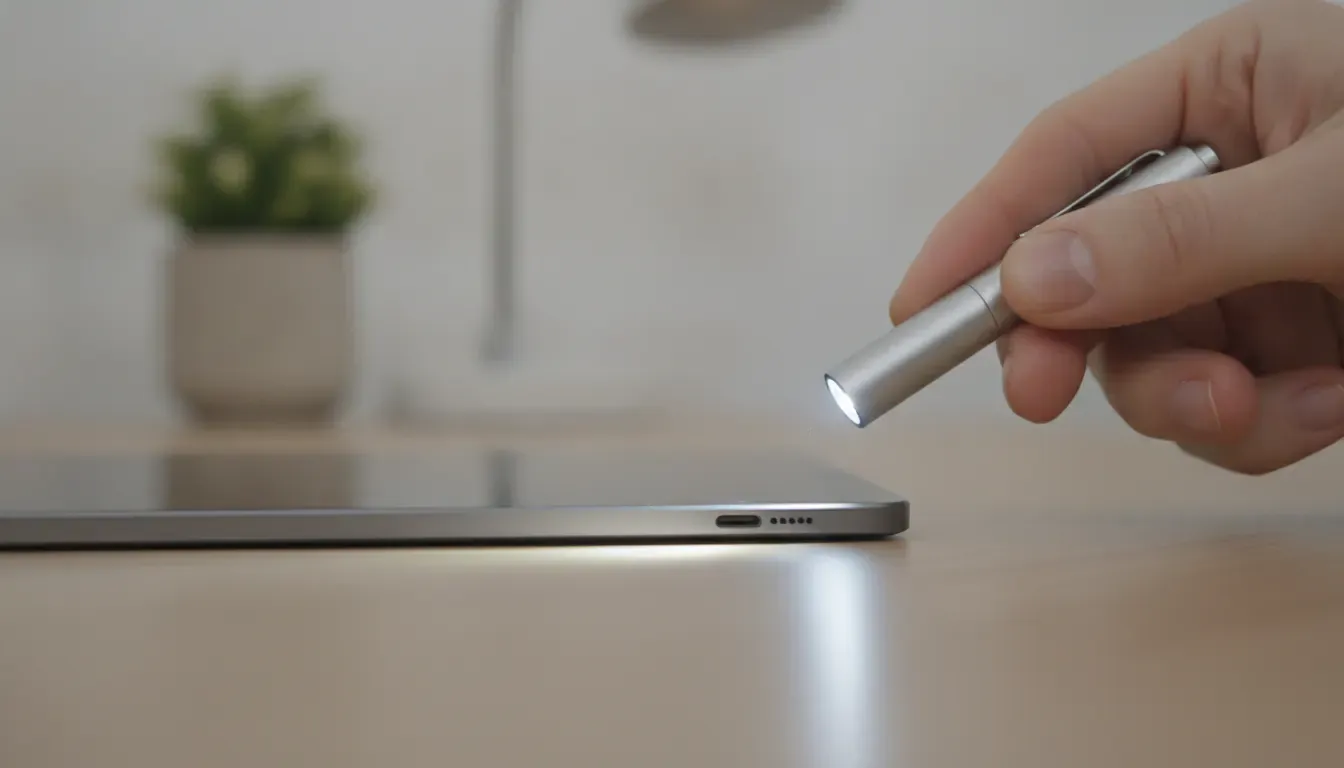
With the iPad disconnected, use a bright light and look into the port. Do not insert a metal pick, needle, paper clip, or other rigid object. Do not pour liquid or cleaning solution into the port, and do not push debris farther inside. If moisture may be present, leave the device disconnected and follow Apple's current safety guidance rather than forcing a charge.
Stop testing if the port is loose, visibly bent, discolored, wet, or damaged. Stop as well if the iPad becomes unusually hot, smells unusual, swells, sparks, or shows scorching. Those signs are not accessory-selection problems. Keep the device away from flammable materials and seek qualified support.
Temperature can also affect charging behavior. Move the iPad and charger to a normal, dry environment and allow them to return to room temperature before trying again. Do not place a hot device in a freezer or use a heat source to dry it. If the same symptom returns after the device has cooled and the external setup has passed a controlled test, service is the safer next step.
What power and compatibility checks matter for an iPad Pro?
USB-C describes the connector shape, not every capability of the charging setup. A cable, adapter, and device still need to work together. Check the labels and specifications for compatibility, but do not treat a larger number on an adapter as proof that it will solve every charging problem.
First, confirm that the adapter is intended for charging and that its connector is fully seated. If the adapter has multiple ports, disconnect other devices during the test. This removes shared-power behavior as a variable. If a charger has a removable cable, check both ends and try the cable in the same orientation and then with a known-good replacement.
Next, consider whether the cable is intended for power as well as data. Some USB-C cables are designed primarily for data transfer or have limited charging capabilities. A cable can fit physically while still being a poor match for the use case. KEUTEK's USB-C fast-charge guide can help frame the difference between cable construction, charging use, and device compatibility.
Do not make an iPad-specific conclusion from a single accessory label. The safest evidence is a repeatable result with the same iPad, a known-good adapter, a known-good cable, and a direct outlet connection. If that setup works, reintroduce the original components one at a time until the symptom returns.
| Test result | Most useful next step |
|---|---|
| The iPad charges with a different cable | Inspect and replace the original cable if it shows damage or fails the repeat test. |
| The iPad charges with a different adapter | Stop using the original adapter if it is hot, damaged, or unreliable, and replace it with a compatible model. |
| The iPad fails with known-good accessories | Inspect the port safely and contact Apple or qualified support if the symptom continues. |
| The port is wet, loose, bent, or scorched | Disconnect the setup and seek service instead of continuing accessory swaps. |
Related products

Power your older Android devices, portable speakers, and various accessories.
View productCan a restart or iPadOS check restore charging?
Software can affect how charging activity is reported, but a restart cannot repair a damaged port, wet device, failed adapter, or broken cable. Complete the physical and safety checks first. Do not keep reconnecting a setup that shows heat, odor, sparks, liquid exposure, or visible damage.
If the iPad is cool, dry, and physically intact, disconnect the charger and restart the iPad using the normal controls for that model. After it restarts, connect the known-good charging setup directly to the iPad. Observe whether the device recognizes the connection or shows a charging indicator. Avoid drawing a conclusion from a single moment if the battery is deeply depleted. Give the known-good setup a short, supervised test instead.
If the iPad can stay powered long enough, check for available software updates through the normal Settings workflow. Use Apple's support documentation for model-specific instructions because button combinations and settings can differ. The official Apple support guide for iPad charging issues is a better source for current device-specific steps than a generic shortcut.
If the iPad remains unresponsive, do not repeatedly force-restart it while using questionable accessories. Document what you tested, which adapter and cable worked with another device, whether the port looks damaged, and whether the iPad was exposed to liquid or impact. That information will make a support conversation more efficient.
When should you stop troubleshooting and seek service?
Stop immediately and seek Apple or qualified repair support when the iPad, adapter, or cable shows a physical or electrical warning sign. These include a loose or damaged USB-C port, liquid exposure, swelling, smoke, sparks, scorching, a strong odor, or heat that remains abnormal after the setup is disconnected.
Service is also appropriate when multiple known-good charging setups fail. A new cable may help only when the cable is the failed variable. It cannot correct a damaged port, an internal power-management fault, liquid damage, or a battery problem. Avoid opening the iPad unless you have the appropriate repair expertise and tools. Internal components and display-connected parts can be damaged during disassembly.
If the device still functions, save important data before service when possible. Record the iPad model, the accessories tested, the order of the tests, and any message shown on screen. Do not keep a damaged cable in circulation just because it works intermittently. Label it for disposal or replacement so it is not used later by mistake.
For charger safety context, the U.S. Consumer Product Safety Commission charger guidance reinforces why damaged or questionable charging accessories should not be treated casually.
How do you choose a replacement cable without masking the real problem?
Choose a replacement only after the swap test points to the cable. Match the connector type and charging purpose to the iPad Pro and the adapter you actually use. Inspect the new cable before use, make sure both connectors seat fully, and keep the first test supervised.
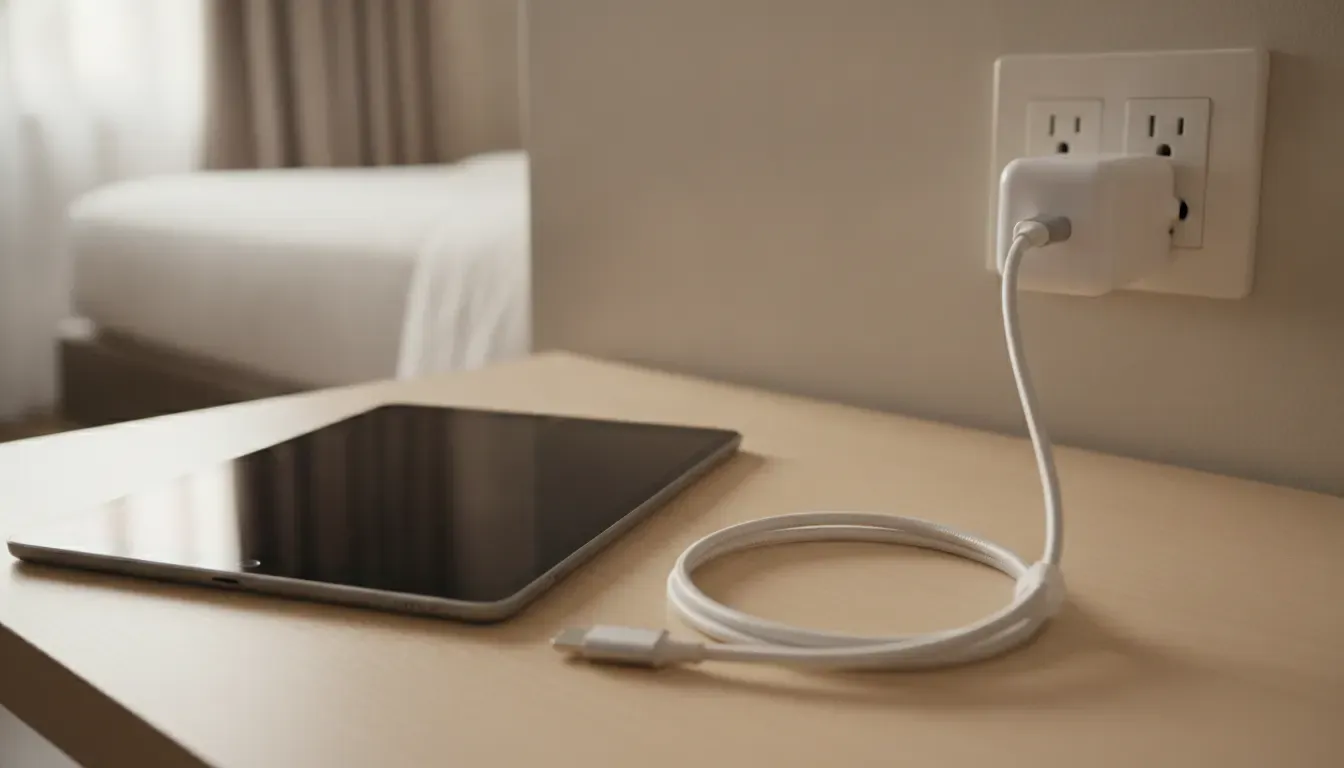
Durability can matter when a cable is used at a desk, in a travel bag, or across several devices. A rugged cable may reduce accessory replacement, but durability claims do not change the need to verify compatibility or inspect the iPad port. Universal or multi-device positioning is useful only when the connector and charging requirements match each device. Keep the cable loosely coiled, avoid sharp bends at the connector, and replace it when its jacket or plug becomes damaged.
KEUTEK's current ProSeries Max USB-C cable is a relevant option when the cable itself has failed and its specifications fit the charging setup. It is not a repair for a damaged iPad. If the iPad fails with a known-good cable and adapter, keep the focus on diagnosis and qualified service rather than continuing to purchase accessories.
Frequently asked questions about iPad Pro charging
Why is my iPad Pro not charging even with a USB-C cable?
Test the outlet, adapter, cable, and iPad port as separate variables. A USB-C connector can fit while the cable, adapter, port, or device has a fault. Use a known-good direct wall setup, then change one component at a time. If more than one known-good setup fails, seek support.
Can lint in the USB-C port stop an iPad Pro from charging?
Yes, compacted debris can prevent a connector from seating fully. Inspect the port with a light while the iPad is disconnected. Do not use metal tools, pour liquid into the port, or force the connector. If the port looks damaged, wet, or loose, stop and seek qualified help.
Does a higher-wattage charger fix an iPad Pro that will not charge?
Not necessarily. A different compatible adapter can help identify an adapter failure, but higher wattage does not repair a damaged cable, port, battery, or internal charging circuit. Test a known-good adapter and cable directly before changing the power rating.
When should I replace the cable instead of repairing the iPad?
Replace the cable when a controlled swap shows that the cable is the only failed variable and the cable has cuts, crushed sections, exposed conductors, heat damage, or an intermittent connection. Seek service when the iPad port is loose or damaged, the device was exposed to liquid, warning signs appear, or several known-good setups fail.
See the current KEUTEK USB-C charging cable if your testing identifies the cable as the problem, not the iPad.


Leave a comment