

How to Fix USB C Cable Not Charging: 9 Steps

When a USB-C cable is not charging, the cable may not be the only problem. The outlet, power adapter, USB-C port, cable type, device compatibility, or USB Power Delivery negotiation can interrupt the connection. The fastest fix is to test the charging path in order instead of repeatedly reconnecting the same cable.
Short answer: Test a known-good outlet and adapter, reseat both ends, inspect the ports for debris or damage, try a cable that supports charging, and then compare the setup with another device. If the cable only works at an angle, feels hot, has exposed conductors, or fails the same test with a known-good charger, replace it.
Explore the KEUTEK ProSeries Max USB-C cable when your current cable is damaged or does not meet your device's charging needs.
What should you check first when a USB-C cable will not charge?
Start with the simplest possible charging path: one wall outlet, one power adapter, one cable, and one device. Remove hubs, docks, battery packs, extension cords, and multi-port accessories from the test. Each additional component can introduce a loose connection, a power limit, or a compatibility issue.
- Disconnect the cable from the device and adapter.
- Plug the adapter directly into a known-good wall outlet.
- Reconnect the cable firmly at both ends. USB-C plugs are reversible, but they still need to be fully seated.
- Wait several seconds and look for a charging indicator, battery icon, or charging notification.
- Try the same setup with a second compatible device, if one is available.
This first test answers an important question: is the failure tied to the original device, or does the complete charging path fail? If another device charges, focus on the original device's port, software, battery, or compatibility. If neither device charges, continue with the outlet, adapter, cable, and connector checks below.
How do you test the outlet and USB-C power adapter?
A dead or switched outlet can look exactly like a failed cable. Plug a lamp or another simple device into the outlet to confirm that it supplies power. If the outlet is controlled by a wall switch, reset switch, timer, or power strip, bypass those variables and test a different outlet.
Next, inspect the adapter. Check for a loose housing, bent prongs, unusual heat, a burnt smell, or a cracked USB port. Do not continue using an adapter that shows visible damage. If the adapter has multiple ports, use the port intended for charging and test only one device at a time. Some multi-port chargers redistribute available power when several devices are connected, so a laptop or tablet may charge slowly or not at all when another device is drawing power.
Use the adapter supplied with the device when possible. For a laptop, the adapter must provide enough power for the computer to charge while it is in use. A phone may accept a lower-power adapter, while a laptop can report a slow-charger warning or continue losing battery even though the cable is connected. Microsoft documents this pattern in its USB-C troubleshooting guidance, which recommends checking the adapter, charging port, cable capability, and direct connection.
Could the USB-C port or connector be blocking the charge?
Lint, dust, pocket debris, and a slightly misaligned plug can prevent the contacts from meeting correctly. Shine a light into the device port and inspect the cable ends. Look for compacted debris, bent metal, a cracked shell, corrosion, or a connector that feels unusually loose.
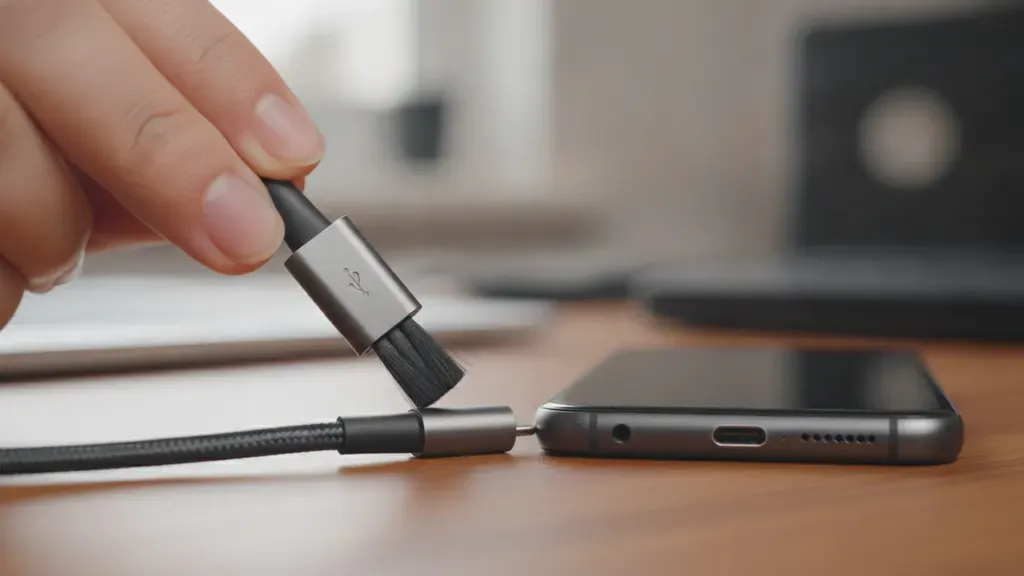
Power the device down before cleaning its port. Use only a gentle, non-metal method appropriate for the device manufacturer's instructions. Never force an object into the port, scrape contacts, or add liquid. If a plug cannot seat fully because of compacted debris, professional cleaning may be safer than trying to dig it out.
Also check whether a case is preventing the plug from reaching the port. Remove the case briefly and test again. A case opening can be wide enough for one cable and too shallow for another connector housing.
Is the USB-C cable charge-only, damaged, or underpowered?
USB-C describes the connector shape, not every capability a cable may have. Two cables can use the same reversible plug while supporting different combinations of charging power, data transfer, video, or USB4 features. A cable may transfer data but provide limited charging, or it may support charging while offering only basic data speeds.
Check the packaging, product listing, or manufacturer's specification for charging support and power rating. Do not assume that a cable is suitable for a laptop simply because it fits a USB-C port. For a phone, a basic charging cable may be enough. For a laptop, tablet, handheld gaming device, or dock, the cable and adapter must support the power level and charging protocol the device expects.
Inspect the full length of the cable, especially both strain-relief areas. Replace it if the jacket is split, the braid is frayed, the connector shell is loose, the plug is bent, or charging stops when the cable moves. A cable that charges only when held at a particular angle has an intermittent connection. Wiggling it is not a repair, and repeated movement can worsen the damage.
Try a different cable that is known to charge the same device. If the replacement works immediately, the original cable is the leading cause. If neither cable works, continue testing the adapter and device rather than buying several replacement cables without identifying the failed component.
How does USB-C power negotiation affect charging?
USB-C charging is a conversation between the power source and the device. The adapter advertises what it can provide, the device requests an acceptable level, and the cable must safely support the connection. USB Power Delivery can negotiate higher power than a basic USB connection, but the final result depends on the capabilities of all three parts: the adapter, cable, and device.
A mismatch may appear as no charging, slow charging, or a battery that charges only while the device is asleep. A high-wattage adapter cannot make an incompatible cable or device accept more power. Likewise, a high-rated cable cannot make a low-power adapter deliver more than it supports. The USB-IF's USB Power Delivery specification library and its USB Type-C specification overview describe the standards behind these roles and capabilities.
For troubleshooting, compare the requirements printed on the device or listed by its manufacturer with the adapter and cable specifications. If the device requires USB Power Delivery or PPS, use a compatible adapter and a cable rated for that setup. If the device is a phone and the issue is only slow charging, the problem may be a lower-power adapter, a basic USB-A path, a warm battery, or active background use rather than a completely failed cable.
Related products

Power your older Android devices, portable speakers, and various accessories.
View product

Why can a USB-A adapter bottleneck a USB-C cable?
A USB-C connector on one end does not guarantee the same charging path as USB-C on both ends. A USB-A to USB-C cable connects a newer device to an older adapter or port. It can be useful, but the older USB-A source may have different power limits and may not support the same USB Power Delivery behavior as a modern USB-C PD adapter.
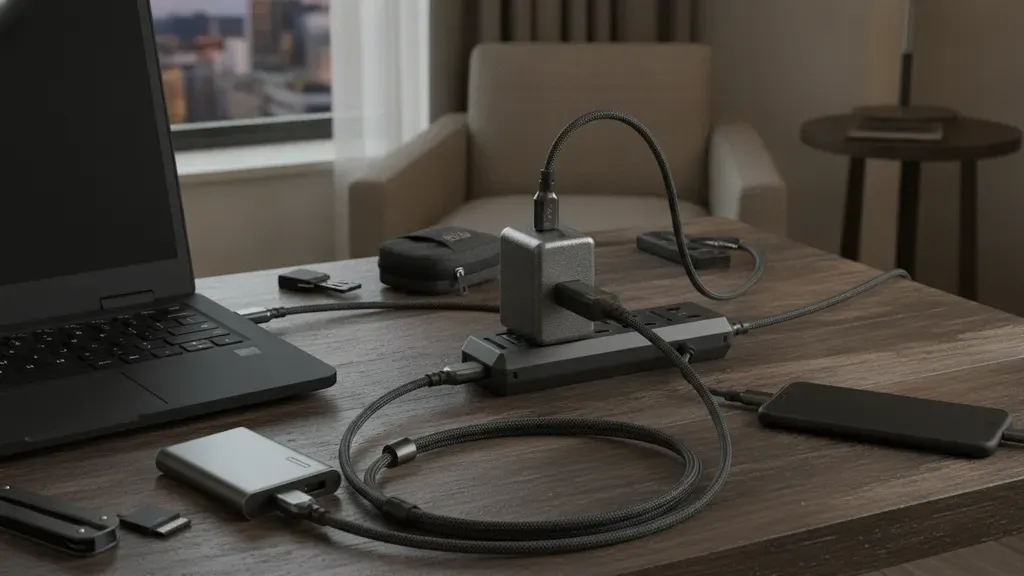
When a USB-C device charges slowly or not at all through USB-A, test a USB-C to USB-C cable with a compatible USB-C power adapter. This isolates the older source as a bottleneck. If the USB-C to USB-C setup works, the original cable may be fine for basic charging but unsuitable for the speed or power level you want.
Do not judge a cable by its connector color or by a wattage printed on an unrelated adapter. Confirm the complete path. The source, cable, and device must support the same charging method, and the device's port must be intended for power input. Some USB-C ports are designed for data or display functions and do not accept charging.
For more background on the distinction between power and data capability, see KEUTEK's USB-C data transfer cable guide and USB-C to USB-A cable guide. Those topics overlap with this troubleshooting problem, but this guide focuses on isolating a failed charging path.
How do you separate a cable problem from a device problem?
Use controlled swaps rather than changing several parts at once. Keep the device the same and change one variable, then keep the charger the same and change the device. A simple test matrix can reveal the fault:
| Test | What to change | What the result suggests |
|---|---|---|
| Known-good device with the original setup | Use the same outlet, adapter, and cable with another compatible device. | If the second device charges, the original device or its port needs closer inspection. |
| Known-good cable with the original device | Replace only the cable with one confirmed to support charging. | If charging returns, the original cable is damaged, incompatible, or underpowered. |
| Known-good adapter with the original device | Replace only the power adapter with a compatible unit. | If charging returns, the first adapter may be faulty or unable to meet the device's power requirement. |
| Direct USB-C to USB-C path | Remove a hub, dock, power strip, or USB-A adapter from the chain. | If the direct path works, an intermediate accessory or USB-A source may be limiting the connection. |
| Port inspection and case removal | Clear the test of case pressure and visible debris without forcing the port. | If charging returns, physical fit or port contamination was interrupting contact. |
Keep notes during the swaps. If a device charges with two different cables but not one specific cable, the evidence is strong. If the device will not charge with multiple known-good cables and adapters, stop treating the cable as the only suspect. The device port, battery, charging circuitry, firmware, or thermal protection may need manufacturer or repair support.
See the KEUTEK Sovix 100W USB-C cable if you need a fixed-tip USB-C cable for a compatible phone, tablet, laptop, or travel setup.
When should you replace a USB-C cable?
Replace the cable when testing shows that it is the failing component, not simply because a device charged slowly once. A replacement is appropriate when the cable has visible damage, works only at an angle, disconnects with light movement, becomes unusually hot, repeatedly triggers an accessory warning, or cannot meet the device's documented power requirement.
Choose the replacement by the charging job. For a phone or tablet, match the connector ends and look for charging support from a reputable manufacturer. For a laptop or handheld console, confirm the cable's power rating and the adapter's USB Power Delivery support. For a travel kit, choose a length that avoids tension without creating excessive loops. For heavy daily use, reinforced strain relief and a durable braided construction can help, but neither replaces checking the cable's actual electrical specifications.
If you want a premium USB-C cable with a broad power range and a durability-focused build, the KEUTEK ProSeries Max may fit when its connector configuration and charging specifications match your device. If you specifically want a fixed-tip USB-C to USB-C cable, review the KEUTEK Sovix instead. Neither option should be treated as a universal answer before you confirm the device, adapter, and cable requirements.
What is the fastest troubleshooting sequence for a USB-C cable that will not charge?
Use this sequence when you need a practical answer without guessing:
- Confirm the outlet with a lamp or another known-good device.
- Connect the power adapter directly to the outlet, without a hub or power strip.
- Remove the device case and reseat both USB-C ends firmly.
- Inspect the device port and cable ends for lint, damage, corrosion, or a loose fit.
- Try a known-good cable that explicitly supports charging.
- Try a compatible power adapter with enough power for the device.
- Test the cable and adapter with a second device, changing one variable at a time.
- Compare USB-C to USB-C with USB-A to USB-C to identify a source bottleneck.
- Stop using damaged or hot equipment and contact the device manufacturer if several known-good setups fail.
For a laptop or other higher-power device, allow the system to cool and test again if it is hot. Apple also recommends testing the outlet, cable, adapter, and ports when a Mac laptop will not charge, and notes that some USB-C cables support data but not charging. See Apple's USB-C charging troubleshooting steps for device-specific guidance.
What are the most common USB-C cable charging questions?
Can a USB-C cable charge but not transfer data?
Yes. Charging and data transfer are related but separate capabilities. A cable can provide power while offering limited data performance, or it can support data while being unsuitable for the power level a laptop needs. Check the cable's documented capabilities instead of assuming all USB-C cables behave the same.
Can a USB-C cable transfer data but not charge?
Some cables or cable-and-device combinations may support data but not the charging level you need. Apple specifically warns that some USB-C cables support data transfer but do not charge a Mac laptop. Test a cable identified for charging and compare the complete adapter, cable, and device path.
Why does my USB-C cable charge slowly?
Slow charging can result from a low-power adapter, a USB-A source, a cable with a lower power rating, device heat, active use, battery protection behavior, or a loose connection. Check each part of the path and compare the device's requirements with the adapter and cable specifications.
Is it safe to keep using a USB-C cable that only works at an angle?
No. A cable that charges only when bent or held in a particular position has an intermittent connection or physical damage. Stop using it and replace it, especially if the connector or cable becomes hot, smells burnt, or shows exposed wire.
Replace a failed cable with the KEUTEK ProSeries Max USB-C cable when its connector and power specifications match your device.


Leave a comment