

Does USB C Monitor Charge Laptop? Power Delivery Explained

Does USB C monitor charge laptop setups? Yes, many USB-C monitors can charge a compatible laptop through the same cable that carries video and data, but only when the monitor has USB Power Delivery output, the laptop accepts charging over USB-C, and the cable can support the negotiated power. This guide shows how to check all three.
Explore the KEUTEK Sovix 100W USB-C Cable for a fixed-tip USB-C to USB-C connection built for compatible laptops, monitors, and everyday charging.
Does a USB-C Monitor Actually Charge a Laptop?
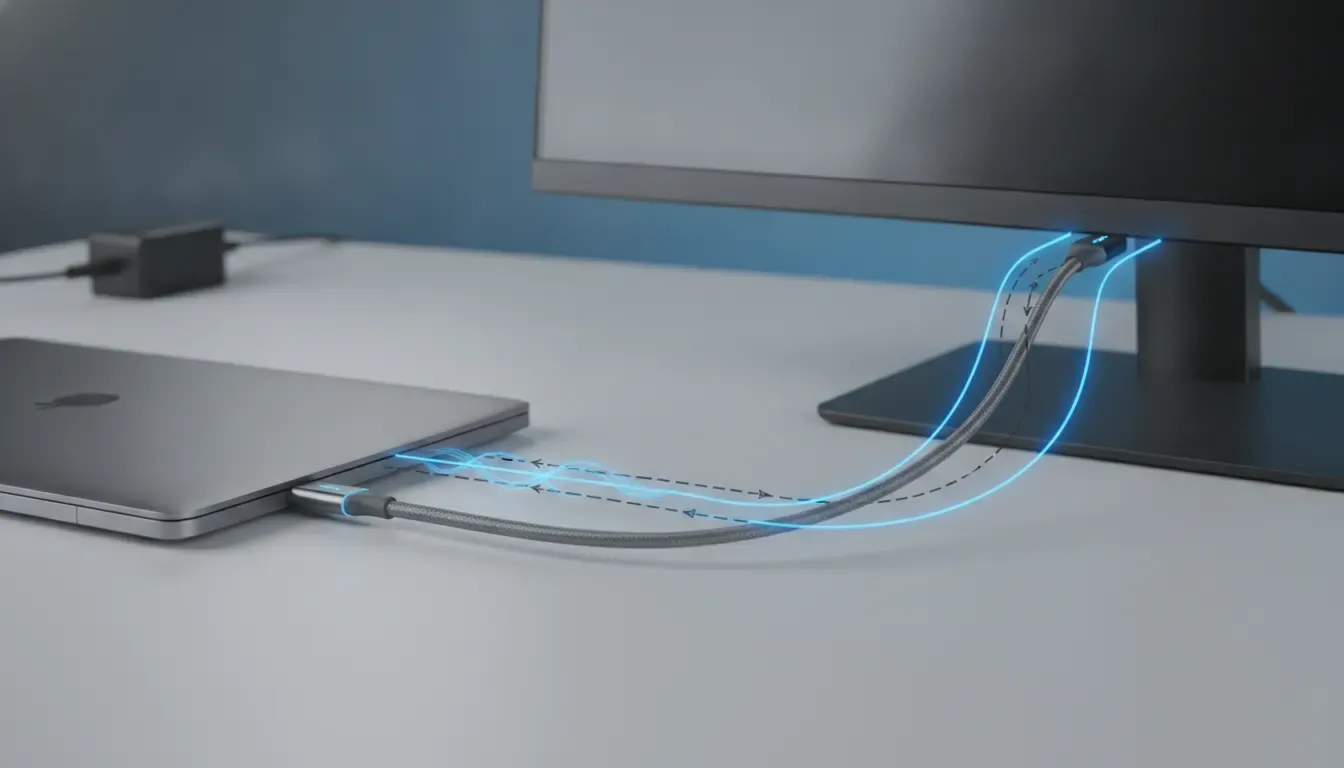
Yes, a wall-powered USB-C monitor can charge a laptop when its USB-C upstream port supports USB Power Delivery. The monitor receives power from its AC adapter, negotiates a supported power profile with the laptop, and sends power, video, and often USB data through one full-featured USB-C cable. A USB-C-shaped port alone does not guarantee charging.
Think of the monitor as a display with a built-in docking function. The monitor's USB-C port may accept video from the laptop, return power to the laptop, and connect the laptop to peripherals plugged into the monitor. This is why a compatible setup can replace a separate laptop charger and reduce desk clutter.
The important distinction is between USB-C connectivity and USB-C Power Delivery. A monitor can have USB-C for display input while offering no power output. Some ports are intended for downstream accessories, while the port labeled USB-C upstream, USB-C PD, or a laptop icon is the one intended for a host computer.
How Does USB-C Power Delivery From a Monitor Work?
USB-C Power Delivery lets the monitor and laptop communicate before power is delivered. The monitor advertises the voltage and current profiles it can provide, the laptop requests what it can use, and the connection settles on a supported level. The laptop cannot draw unlimited power simply because the cable or monitor has a high wattage label.
USB-IF describes Power Delivery as a system that combines flexible power delivery with data over a single USB Type-C connection. Its documented examples include a wall-powered monitor charging a laptop while the monitor displays the laptop's picture. See the USB-IF USB Power Delivery overview for the standards background.
Power negotiation protects the devices by matching the source, cable, and sink. If the monitor provides 90W but the laptop requests 65W, the laptop normally uses the lower requested level. If the laptop needs more than the monitor can supply, it may charge slowly, maintain its battery level, or continue losing charge under a heavy workload.
How Much Power Does a USB-C Monitor Need to Deliver?
The monitor's advertised USB-C output should meet or exceed the laptop's normal charging requirement for the setup to work well. Check the laptop's original charger label or technical specifications, then compare that number with the monitor's USB-C Power Delivery output. A monitor that supplies less power may still work, but it may not keep the battery rising during demanding work.
| Monitor USB-C output | Laptop requirement | Likely result |
|---|---|---|
| Below the laptop's normal charging requirement | The laptop needs more power than the monitor can provide | It may charge slowly, hold its level, or lose charge while the processor and display are busy. |
| About equal to the laptop's normal requirement | The laptop can operate within the monitor's available budget | It can usually charge and run normally, although connected accessories may share the monitor's power budget. |
| Higher than the laptop's normal requirement | The laptop requests only what its charging system accepts | The setup has useful headroom, but the laptop still controls the negotiated amount. |
Wattage can also change when the monitor powers its own USB ports, Ethernet, speakers, webcam, or other accessories. A monitor might advertise a maximum USB-C Power Delivery number while allocating less in a particular mode. Read the display's manual for the sustained laptop-charging output, not only the monitor's total power consumption.
Performance laptops deserve extra caution. A compact business laptop may be comfortable with moderate USB-C input, while a workstation or gaming laptop can need a larger adapter during demanding workloads. If the monitor's output is below that laptop's requirement, keep the laptop's original charger connected for heavy sessions.
Which USB-C Cable Works for Monitor-to-Laptop Charging?
Use a USB-C to USB-C cable that supports both the monitor's display connection and the required Power Delivery level. Do not assume that every USB-C cable carries video, data, and high-power charging. USB-C describes the connector shape, while the cable's internal wiring, electronic marker, construction, and stated ratings determine what the connection can do.
- Power rating: Choose a cable rated for at least the power level your monitor can negotiate with the laptop.
- Video support: Confirm that the cable supports the display mode required by the monitor, such as DisplayPort Alt Mode, when the manufacturer lists that requirement.
- Data capability: If the monitor's hub connects a keyboard, storage device, or network adapter, confirm the cable's data rating too.
- Length and build: Use a practical length with reinforced connectors so the cable is not sharply bent behind the display.
A high wattage rating alone does not promise high data speed or video support. KEUTEK's guide to USB-C data transfer cable speed versus power explains why those functions are separate. For higher-power charging context, the USB-C PD 3.1 guide covers how the charger, cable, and device must work as a matched system.
The KEUTEK Sovix 100W Fast Charging Cable is a fixed-tip USB-C to USB-C cable that supports up to 100W USB-C PD, USB 2.0 data transfer, and compatible USB-C laptops and monitors. Its nylon braided jacket, reinforced strain relief, and aluminum alloy connectors are suited to a fixed desk or travel setup. Confirm the monitor's display compatibility before relying on any cable for video.
See the KEUTEK Sovix 100W Fast Charging Cable for a durable fixed-tip USB-C to USB-C option when your monitor and laptop setup calls for up to 100W PD.
Related products

How Do You Set Up Laptop Charging Through a USB-C Monitor?
Start with the ports and specifications, then connect the system in the order below. The goal is to use the monitor's USB-C upstream connection, not a low-power accessory port. If the display has a menu option for USB-C charging, enable it before troubleshooting the cable.
- Check the laptop: Confirm that its USB-C port supports charging input and video output. Some laptops have USB-C ports that support data only.
- Check the monitor: Look for USB-C Power Delivery output and note its maximum laptop-charging wattage.
- Check the cable: Use a full-featured USB-C to USB-C cable with a suitable power rating and documented video support.
- Connect the monitor to AC power: A typical USB-C monitor must be plugged into the wall before it can provide power to a laptop.
- Connect the laptop to the correct port: Use the monitor's upstream USB-C or USB-C PD port, not a downstream port intended for accessories.
- Confirm the result: Check the laptop's battery indicator, charging status, display signal, and any monitor menu showing USB-C power output.
If the monitor works as a display but does not charge the laptop, that result usually points to a capability or port issue rather than a bad screen. Test the laptop with its original charger and test the monitor with another known-compatible USB-C laptop if available. Change one variable at a time so you can identify the missing function.
Why Is My USB-C Monitor Not Charging My Laptop?
When a USB-C monitor displays the laptop but does not charge it, video support is working while Power Delivery is not. The usual causes are a non-PD monitor port, a laptop USB-C port that does not accept charging, an underpowered monitor, an incompatible cable, or a monitor setting that limits USB-C output.
- Wrong monitor port: Move the cable to the USB-C upstream or PD port shown in the monitor manual.
- USB-C is data-only on the laptop: Check the laptop's port symbols and specifications for charging input and DisplayPort Alt Mode.
- Monitor output is too low: Compare its laptop-charging wattage with the laptop's original adapter requirement, especially under load.
- Cable is charge-only or low-rated: Replace it with a USB-C to USB-C cable that states its PD and video capabilities.
- Power-saving setting is active: Review the monitor's USB-C, USB hub, and power-delivery settings, then restart both devices.
- Accessories share the budget: Temporarily disconnect USB devices from the monitor to see whether laptop charging returns.
- Firmware or compatibility issue: Install current monitor and laptop updates from the manufacturers when the documentation recommends them.
Avoid forcing a connection with an adapter that changes the signal path. HDMI and standard DisplayPort can carry video but do not normally provide laptop charging from the monitor. A USB-C monitor-to-laptop setup needs a complete USB-C path with the right power direction and video mode.
When Is a USB-C Monitor Charger Not Enough?
A monitor is not always a full replacement for a laptop charger. It is most convenient when the laptop's normal work fits within the monitor's USB-C output and the monitor remains powered. Keep the original charger nearby for high-load work, travel, docking stations with many accessories, or any laptop that requires more power than the display provides.
| Use case | Recommended approach |
|---|---|
| Office documents, browser tabs, and video calls | A compatible USB-C monitor with adequate PD output can simplify the desk to one cable. |
| Photo, video, engineering, or other sustained workloads | Compare the monitor output with the laptop's required adapter and watch the battery during a real workload. |
| Gaming or a high-performance mobile workstation | Use the manufacturer's recommended charger if the monitor cannot deliver the required power profile. |
| Travel or a monitor that is not powered | Carry a separate USB-C charger and suitable cable because the monitor cannot provide power when it is off or unplugged. |
For a separate wall-powered option, KEUTEK's 65W Fast Charging Wall Charger can be evaluated alongside the laptop's documented input needs. Do not treat the charger's maximum rating as a promise that every laptop will accept that amount. The device and the connected cable still determine the negotiated result.
What Should Professionals and Home-Office Users Check?
For a reliable one-cable workstation, verify the complete chain before buying or rearranging the desk. Confirm laptop charging input, laptop video output, monitor USB-C Power Delivery output, monitor display input, cable power and video capability, and the effect of attached peripherals. This checklist prevents a USB-C connector from being mistaken for a complete docking solution.
- Write down the laptop's normal charger wattage.
- Confirm the monitor's sustained USB-C laptop-charging output.
- Identify the monitor's upstream or PD port.
- Confirm that the laptop USB-C port supports both charging input and display output.
- Use a cable with the required PD rating and documented video support.
- Test charging with monitor accessories disconnected before adding a hub, webcam, or storage.
- Keep the original charger for workloads that exceed the monitor's power budget.
This approach works for a home office, shared professional desk, or travel workstation because it focuses on the actual limits of each component. The cleanest setup is not necessarily the one with the biggest wattage number. It is the one where the monitor, laptop, cable, and workload are matched.
Pair your USB-C setup with a KEUTEK 65W Fast Charging Wall Charger when your laptop's documented input needs fit that power class and you want a compact backup for home or travel.
USB-C Monitor and Laptop Charging FAQs
Can I charge my laptop directly from a USB-C monitor?
Yes, if the monitor has USB-C Power Delivery output, the laptop accepts charging over USB-C, and the cable supports the required power and display functions. Connect the laptop to the monitor's upstream USB-C or PD port while the monitor is plugged into wall power.
Can I charge my laptop from my monitor without a separate charger?
Often, yes. A compatible wall-powered monitor can replace the laptop charger during ordinary work, but it may not provide enough power for every laptop or heavy workload. Compare the monitor's USB-C output with the laptop's original charger requirement before leaving the separate charger at home.
Will any USB-C cable charge a laptop from a monitor?
No. USB-C is a connector standard, not a guarantee of Power Delivery, video, or data speed. Use a USB-C to USB-C cable with a suitable power rating and documented display capability. A charge-only cable may deliver power but fail to carry the monitor signal.
Why does my USB-C monitor show video but not charge?
Video can work even when Power Delivery does not. Check whether the cable is in the monitor's USB-C upstream or PD port, whether the laptop port accepts USB-C charging, and whether the monitor provides enough wattage. Then test with a known-compatible cable and disconnect monitor accessories temporarily.
Does a higher-wattage USB-C monitor charge every laptop faster?
No. USB Power Delivery is negotiated. The laptop requests a supported power level, so a monitor with a higher maximum output does not force more power into the battery. A higher output can provide useful headroom, but the laptop, cable, and monitor must still support the same profile.
Can a USB-C monitor charge a laptop when the monitor is off?
It depends on the monitor's standby and USB-C power settings. Some displays continue limited USB power in standby, while others stop laptop charging when they are off or unplugged. Check the monitor manual and do not rely on standby charging for travel or a high-demand workload.


Leave a comment